
You're Already Paying for Dropbox. You Just Don't Know It.
If your business uses Microsoft 365, you have a file sharing and collaboration platform already included in what you pay every month. Here's why most small businesses don't use it — and why that's costing them more than they realise.
The Dropbox habit
Dropbox became popular because it solved a real problem simply. Drop a file in a folder, it appears on everyone's computer. Share a link, anyone can see the file. It just works. So businesses adopted it, paid for it, and built their working habits around it. Meanwhile Microsoft 365 quietly included OneDrive and SharePoint in every subscription — tools that do everything Dropbox does, and considerably more — and most small businesses never touched them.
If you're paying for both, you're paying twice. But the cost is only part of the story.
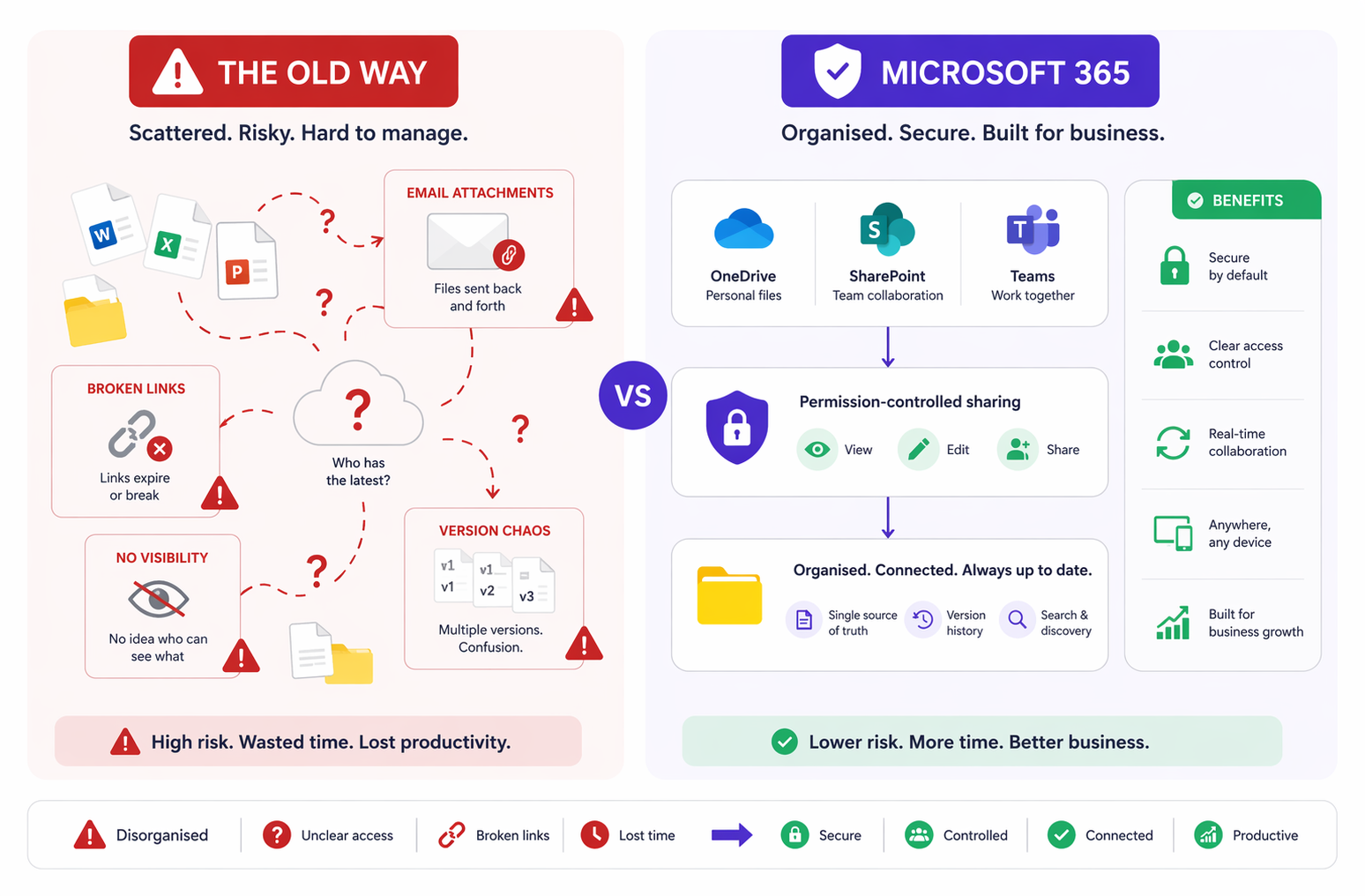
The bigger problem: who can actually see your files?
This is where Dropbox — and poorly managed file sharing in general — creates a problem that most small business owners don't think about until something goes wrong.
When you share a Dropbox folder with a client, a contractor, or a new member of staff, you're making a decision about access. But Dropbox makes it very easy to share broadly and very easy to forget what you've shared. A link sent eighteen months ago to a supplier who no longer works with you? Still active. A folder shared with a contractor for a project that finished last year? Still accessible.
Microsoft 365 handles this differently — and better — because it's built around the concept of permissions that belong to people, not just links floating in the world.
With SharePoint and OneDrive you can:
Share files with specific named individuals who must sign in to access them
Set links to expire after a defined number of days
See exactly who has access to any file or folder at any time
Revoke access instantly when a project ends or someone leaves
Choose whether external people can view only, or edit
More importantly, you can review all of this from a central place. Your IT admin — or Clever Computer Crew on your behalf — can see every file shared externally across your entire organisation. With Dropbox, that visibility simply doesn't exist unless you go looking for it manually.
Collaborating with your team — without the chaos
Anyone who has worked on a document by emailing it back and forth knows the pain. Version 1, Version 2, Version 2 FINAL, Version 2 FINAL amended, Version 2 FINAL amended NW comments. At some point nobody is sure which one is right.
Microsoft 365 solves this completely. When a document lives in SharePoint or OneDrive, your whole team can work on it at the same time — in real time, in the browser or in Word on their desktop, watching each other's edits appear as they happen. No emailing files. No version confusion. One document, one version, always current.
For project work this transforms how teams operate:
A quote or proposal can be drafted collaboratively without anyone sending attachments
Meeting notes appear in a shared space the moment they're written
Design files, spreadsheets, and reports can be reviewed and commented on without downloading and re-uploading
Every change is tracked automatically — you can see who changed what, and roll back to any previous version if something goes wrong
And because it all lives in Microsoft 365, it connects naturally to Teams, Outlook, and everything else your business already uses. The file you're working on in Word is the same file you shared in Teams, the same file your colleague opened from the email you sent them. One platform, no duplication.
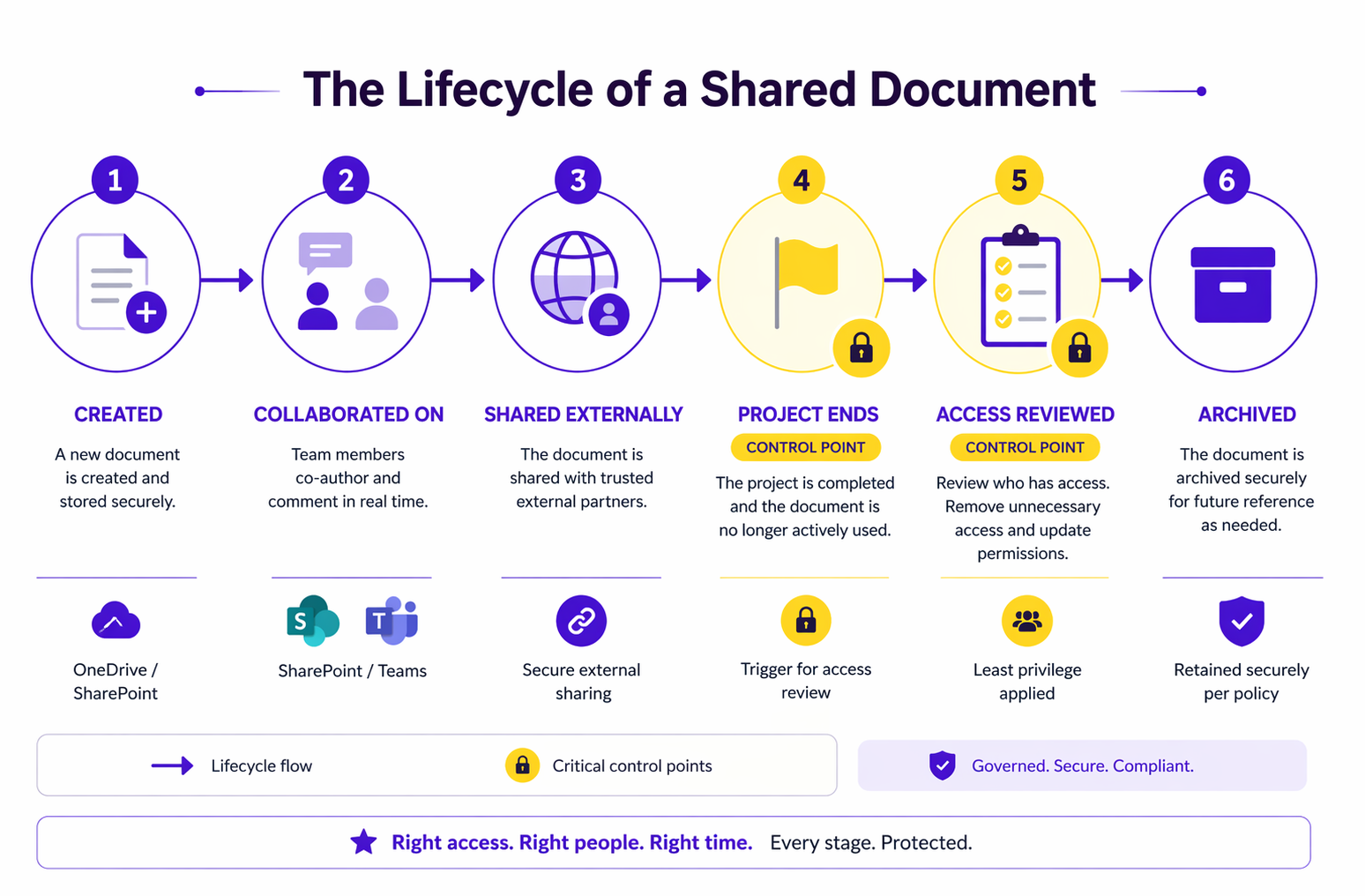
What happens when the project ends?
This is the question most small businesses never ask — and the one that creates the most risk.
When a project finishes, a contractor leaves, or a client relationship ends, what happens to the access you granted them? In Dropbox — usually nothing. The link still works. The shared folder is still there. Unless someone actively goes back and removes access, the files remain accessible indefinitely.
In Microsoft 365, you have proper tools to handle this:
Guest access reviews — you can see every external person with access to your files, when they last signed in, and what they can see. Microsoft 365 can prompt you periodically to review and confirm whether guest access should continue — a feature called Access Reviews.
Link expiry — when you share a file externally you can set a link to expire automatically after 7, 14, or 30 days. Once the link expires, it stops working. No need to remember to go back and revoke it.
Site archiving — when a project is complete, a SharePoint site can be archived. The files are preserved, searchable, and recoverable — but the site is closed off from active use. Nobody accidentally adds to it, edits it, or shares from it.
Leaver processes — when a member of staff leaves, disabling their Microsoft 365 account immediately revokes their access to everything — email, files, Teams, SharePoint. Their OneDrive can be preserved for a defined period so nothing is lost, then handed over to their manager. With Dropbox, a leaver's shared links remain active even after their account is closed unless someone specifically goes through and removes them all.
Where your valuable data leaks out
Small businesses rarely lose data in dramatic ways — a headline breach, a ransomware attack, a sophisticated hack. They lose it quietly, in ways nobody notices until it matters.
A contractor who kept copies of your client list after their project ended. A former employee whose Dropbox link to your pricing spreadsheet still works. A shared folder that was meant for one client that accidentally contained files for another. A document shared with "anyone with the link" that got forwarded three times and ended up somewhere unexpected.
None of these are malicious. All of them are common. And all of them are preventable with the right setup.
Microsoft 365's sharing controls, when properly configured, close most of these gaps:
No anonymous links by default — files should require sign-in to access, so you always know who has seen them
External sharing limited to verified guests — people outside your organisation are invited by name, not by link
Sharing reports — your admin can see every file shared externally across the whole organisation at any time
Data Loss Prevention policies — Microsoft 365 can detect when sensitive content (financial data, personal information, confidential documents) is being shared externally and alert you or block it automatically
That last point is worth dwelling on. Microsoft's own scanner regularly detects hundreds of documents containing sensitive information sitting in SharePoint sites with overly broad sharing permissions — in organisations that have no idea it's happening. A Health Check will tell you exactly what's exposed and to whom.
Making the switch
Moving from Dropbox to Microsoft 365 doesn't have to be complicated. Microsoft has a built-in migration tool that connects directly to your Dropbox account and transfers your files — folder structures intact — to SharePoint or OneDrive.
📖 Migrate from Dropbox using Migration Manager — Microsoft Learn
For individual users, the quickest starting point is turning on OneDrive Known Folder Move — a setting that automatically syncs your Desktop, Documents, and Pictures folders to OneDrive. Everything that lives on your laptop is instantly backed up and accessible from anywhere. Users can enable this themselves in OneDrive settings in about two minutes.
📖 OneDrive Known Folder Move — Microsoft Learn
For shared files, the starting point is a SharePoint team site — a shared space where your team stores and collaborates on documents, with proper permissions from the start.
📖 Introduction to SharePoint — Microsoft Learn
The honest bottom line
Dropbox is a good product. But for a small business already paying for Microsoft 365, it's an unnecessary cost — and more importantly, it's a set of file sharing habits that work against you when it comes to controlling who sees what, managing access when projects end, and keeping your valuable data where it belongs.
The alternative is already in your subscription. It just needs to be set up properly.
If you're not sure whether your Microsoft 365 file sharing is configured in a way you'd be comfortable with — or you'd simply like to know what's currently accessible to whom — that's exactly what our M365 Health Check looks at.
Find out more about the Clever Computer Crew M365 Health Check →
